

How can we help you?
Everything you need to know about using FinXtract to extract financial data from your documents.
Getting Started
What is FinXtract?
FinXtract is an AI-powered service that extracts financial data from your documents automatically. Simply upload your bank statements, invoices, receipts, or any financial document, and our AI will read and extract all the important information like transactions, dates, amounts, and more. No manual typing needed!
Who is it for?
- Chartered Accountants: Process client documents faster during audit season
- Small Businesses: Manage expenses and invoices without hiring extra staff
- Finance Teams: Streamline financial reporting and GST reconciliation
- Individuals: Track personal expenses and organize receipts without extra work
Document Types We Support
FinXtract supports 4 main document types. Each is optimized for specific extraction needs. You're charged per page of your PDF, regardless of document type.
Bank Statements
Extract complete transaction history from any Indian bank statement - SBI, HDFC, ICICI, Axis, and more.
What we extract:
- Transaction date & value date
- Description/Narration
- Debit & Credit amounts
- Running balance
- Reference/Cheque numbers
Passbooks
Digitize physical passbook entries from scanned images or photos. Works with all Indian bank passbooks.
What we extract:
- Date of transaction
- Transaction particulars
- Withdrawal & Deposit amounts
- Balance after transaction
- Account holder details
Invoices
Extract complete invoice data including GST details. Perfect for GST reconciliation and accounting.
What we extract:
- Invoice number & date
- Seller & Buyer GSTIN
- Line items with HSN codes
- Taxable amount, CGST, SGST, IGST
- Total amount & payment terms
General Documents
Extract data from any financial document - receipts, expense reports, salary slips, and more.
What we extract:
- Key-value pairs from document
- Tables and structured data
- Amounts and dates
- Names and addresses
- Custom fields based on content
⚠️ Important: The first page must contain data with headers.
Tips for Best Results
Do's - For Best Accuracy
- ✓Use clear, high-resolution scans - 300 DPI or higher for scanned documents
- ✓Upload native PDFs when possible - Digital bank statements work better than scanned copies
- ✓Ensure proper lighting - When photographing passbooks, use even lighting without shadows
- ✓Keep documents straight - Avoid tilted or rotated scans
- ✓Include full page - Make sure headers and footers are visible for context
- ✓Use password-free PDFs - Remove password protection before uploading
Don'ts - Avoid These
- ✗Blurry or low-quality images - Text should be clearly readable
- ✗Cropped documents- Don't cut off parts of the statement
- ✗Heavy compression - Over-compressed JPEGs lose text clarity
- ✗Handwritten notes over text - Annotations can confuse extraction
- ✗Multiple statements in one image - Upload each page separately
- ✗Watermarked or stamped documents - Heavy watermarks reduce accuracy
Bad PDF Examples
These are real-world examples of PDFs that cause poor extraction results. If your document looks like any of these, fix the issue before uploading to save credits and get accurate data.
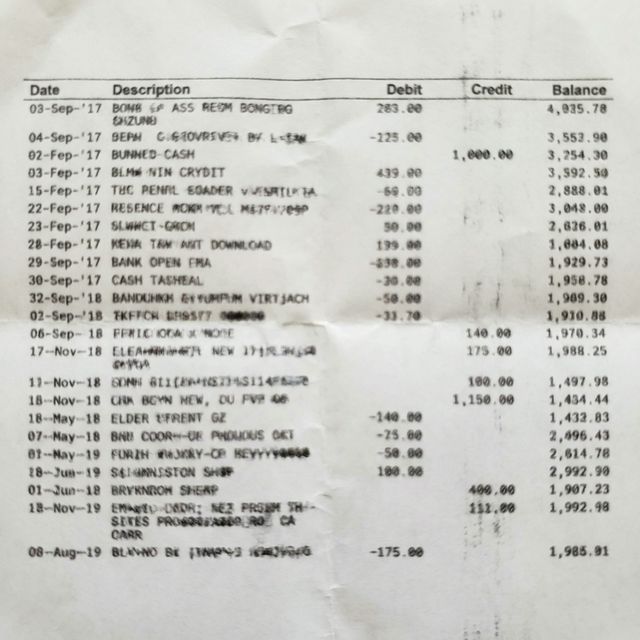
Blurry or Low Resolution Scan
When a bank statement is scanned at low resolution (below 200 DPI) or the image is blurry, the AI cannot reliably read the text. Numbers like "1" and "7", or "5" and "6" become indistinguishable, leading to incorrect amounts in your data.
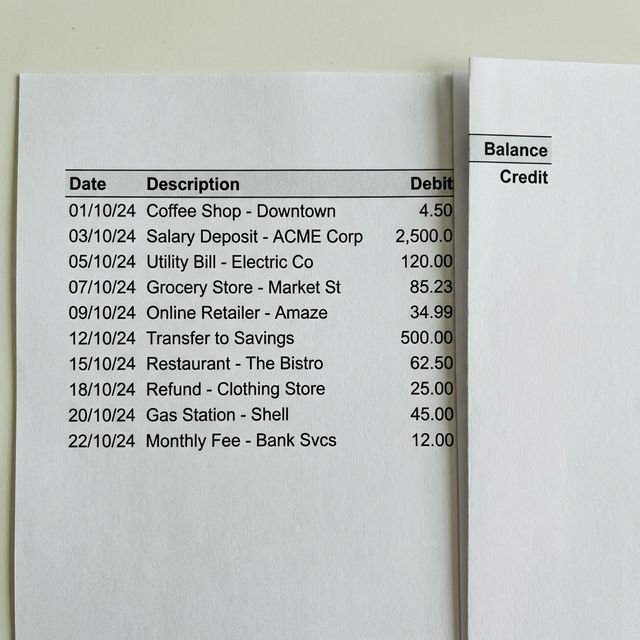
Cropped or Cut-off Page
If the scan or photo of your statement is cropped, the Balance or Credit/Debit columns at the edge may be partially or fully missing. The AI will either skip those transactions entirely or assign incorrect values to the wrong columns.
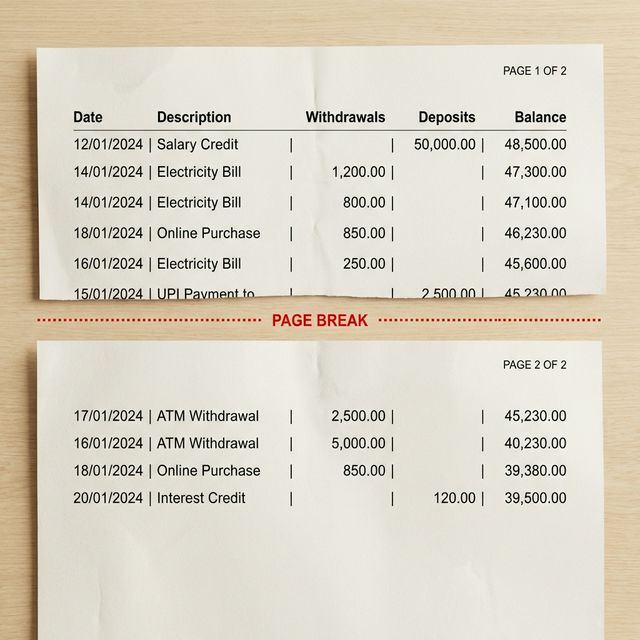
Transaction Split Across Pages
When a long transaction description starts at the bottom of one page and continues on the next page, the AI processes pages separately. It sees half the row on Page 1 (date + description but no amount) and the other half on Page 2 (just amounts without a date). This results in a missing transaction or one with garbled data.
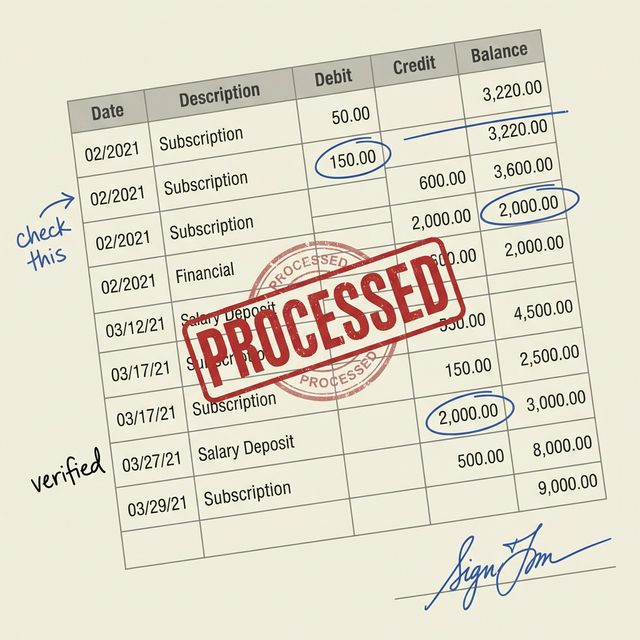
Handwritten Notes & Annotations
Pen marks, highlighters, sticky notes, tick marks, or handwritten calculations on top of the printed statement get mixed into the extracted text. The AI reads "✓ 15,000" as a single value or merges note text with the description.
How to Use FinXtract
Upload Your Document
Log in to your FinXtract account and click the "Upload" button. You can:
- Drag and drop files directly
- Click to browse and select files from your computer
- Upload multiple documents at once (batch processing)
Max file size: 10MB per file
Select Document Type
Choose the type of document you're uploading for optimized extraction:
- Bank Statement - For transaction history extraction
- Passbook - For scanned/photographed passbook pages
- Invoice - For GST invoices and bills
- General - For any other financial document
AI Processes Your Document
Our AI technology automatically:
- Reads the document using advanced OCR
- Identifies and structures financial data
- Extracts transactions, dates, amounts, and more
- Organizes everything into a clean, structured format
Download Your Data
Once processing is complete, you can:
- View the extracted data in your browser
- Download as CSV - Opens in Microsoft Excel, Google Sheets, or import into Tally
- Copy data directly to clipboard
Understanding Credits
What are credits?
Credits are called "Pages" in the UI. 1 Credit = 1 Page of a PDF document. You're charged per page, regardless of which document type you select. See our plans for credit volumes included with each plan.
How are credits calculated?
Credit usage is based on the number of pages in your PDF:
- 1 page PDF: ~1 credit
- 10 page bank statement: ~10 credits
- 50 page audit bundle: ~50 credits
- 100+ page document: ~100+ credits
You'll always see the exact credit cost before processing. No surprises!
Two Types of Credits
1. Monthly Credits (Subscription)
- • Included with your subscription plan
- • Reset at the start of each billing cycle
- • Used FIRST when processing documents
- • Do NOT roll over to next month
2. Extra Credits (Bonus)
- • Purchased separately or awarded as promotions
- • Do NOT expire - use anytime
- • Only usable by paid subscribers
- • DEMO tier users CANNOT use extra credits
DEMO Tier Limitation
DEMO tier users get 30 pages only. Even if you have bonus/extra credits, you cannot use them without upgrading to a paid plan. Monthly credits are used first, then extra credits (paid users only).
Failed Extractions = No Charge
Credits are only deducted for successful extractions. If processing fails due to an error or poor quality document, you won't be charged. Only completed and successful extractions consume your credits.
Do credits expire?
Monthly credits reset at the start of each billing cycle and don't roll over to the next month.
Extra/Bonus credits never expire and remain until used. However, you must have an active paid subscription to use them. Free tier users with bonus credits must upgrade to a paid plan before they can use those credits.
Organizations & Teams
What is an Organization?
Organizations allow multiple team members to work together under a single account. Perfect for CA firms, accounting teams, and businesses with multiple users who need to process documents.
Shared Credits Pool
Organization members share credits from a common pool. Here's how it works:
- Single Credit Balance: All organization members draw from the same credit pool
- Admin Control: Organization admins can purchase credits, manage the subscription, and view usage reports
- Usage Tracking: See which team member used how many credits with detailed usage logs
- Invite Members: Add team members via email invitation - they get instant access to the shared credits
Organization Roles
👑 Owner / Admin
- • Manage billing & subscription
- • Add/remove team members
- • Purchase additional credits
- • View all usage reports
👤 Member
- • Use shared credits for processing
- • Upload and extract documents
- • View their own usage history
- • Download extracted data
Priority Processing
What is Priority Processing?
During high server load, free tier users may experience delays until the system cools down. Paid subscribers get priority queue access, ensuring faster processing even during busy periods.
- Free tier: May experience delays during peak hours
- Paid subscribers: Always get priority queue access
- Processing time: Usually 5-30 seconds per page for paid users
Priority Disabled Error
If you see error code PRIORITY_DISABLED, it means the system is currently busy and free tier processing is temporarily paused. Upgrade to a paid plan for priority access during peak times and avoid processing delays.
Security & Privacy
Is my data safe?
Absolutely! We take security very seriously:
- Encrypted during upload and storage (AES-256)
- Bank-grade security standards (SSL/TLS)
- Documents auto-deleted after 24 hours
- You can manually delete documents anytime
- Strict access control (only you access your docs)
- We never share data with third parties
What happens to my documents?
Your documents are processed securely and automatically deleted within 24 hours. We prioritize your privacy by not storing your financial data long-term. You can also delete them immediately through your dashboard.
Common Questions
What if the extracted data isn't accurate?
While our AI achieves 96%+ accuracy, you should always review the data before using it. You can edit any fields directly in the dashboard. For best results, follow our tips above.
Can I process documents in Hindi or regional languages?
Currently, FinXtract works best with English documents. Support for Hindi and other Indian languages is coming soon!
Is the CSV output ready for Tally import?
Yes! Our CSV exports are formatted to be directly importable into Tally, Excel, and other popular accounting software. The columns match standard accounting formats.
Can I buy more credits with an active subscription?
Yes! You can purchase additional credits anytime, even with an active subscription. This is perfect for busy periods when you need extra processing capacity.
Can I cancel my subscription anytime?
Yes! Cancel anytime from your account settings. You'll retain access until the end of your billing period.
Do you offer refunds?
If you experience technical issues, contact our support team and we'll work with you to find a solution, including refunds where appropriate.
Still have questions?
Our support team is just a click away to help you with any issues or queries.